If you would like to learn more about this feature, an e-learning tutorial is available below:
Generative AI with Tale of Data
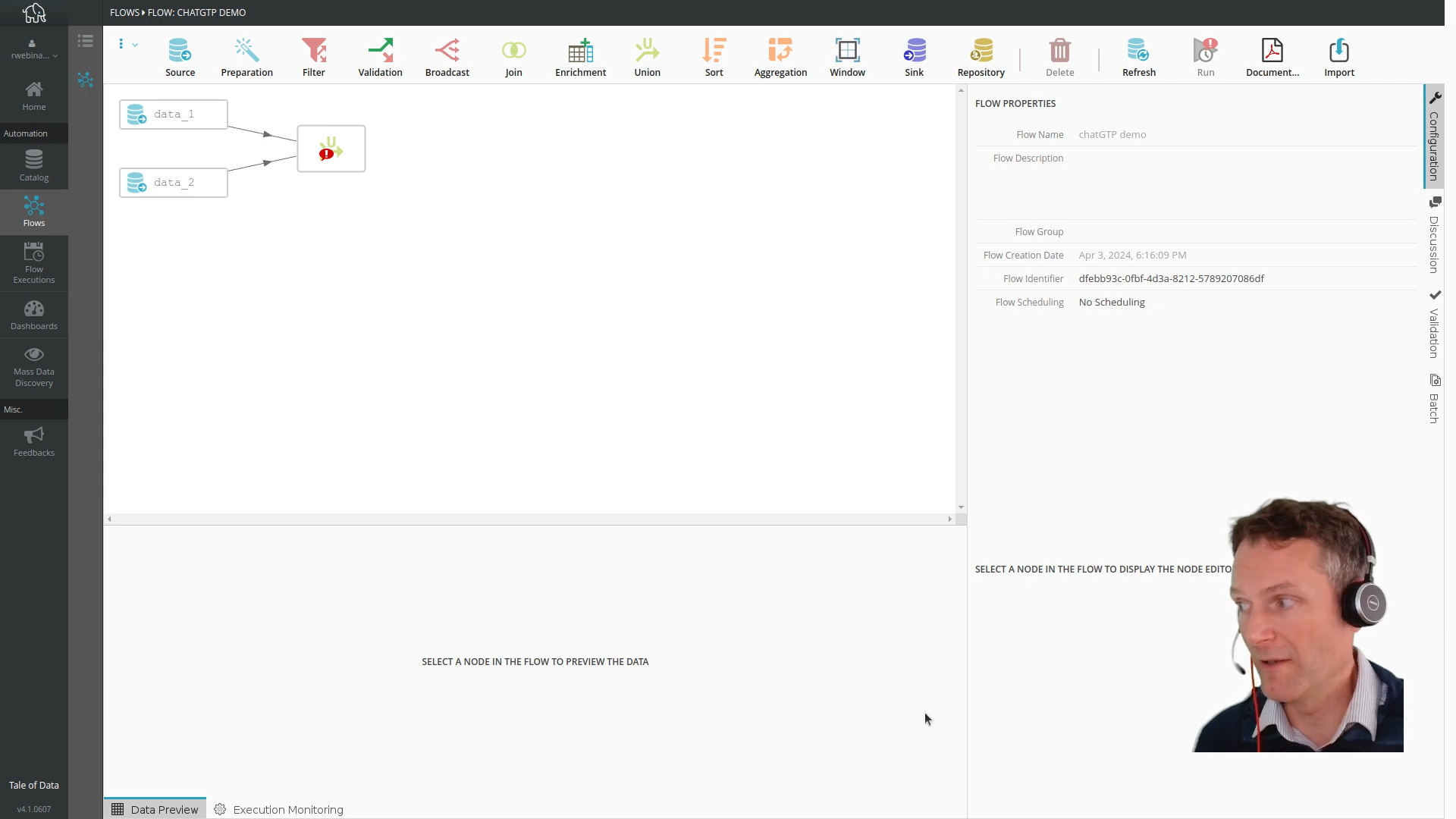
An example of how to connect to ChatGTP to use Generative AI with Tale of Data.
5.5. Natural language data transformation
By following the instructions you type into the prompt box, the generative AI will perform the requested transformations for each row of the dataset.
Warning
Rows are processed independently of each other. In other words, you cannot use data from one row to transform another row. Use window functions if you need to include neighboring rows of a record in your calculation.
5.5.1. Instruction examples
Separate first names and last names
Separate address components into 3 columns: “Street”, “Postal code”, and “City”
Format phone numbers
Capitalize the first letter of each word
In column C remove the “XX” prefix
Remove words with fewer than 3 letters in column C
etc.
Give your instructions as precisely as possible.
You can also use this transformation to create or move columns
However, you cannot add or delete rows with this transformation.
5.5.2. Best practices
To improve robustness and maintainability, opt for a series of simple and readable transformations rather than trying to make a single transformation containing several complex instructions.
Feel free to provide concrete examples of what you are trying to achieve.
Explicitly name the columns to create, otherwise the AI will do it for you, which may not be what you want.
Note
This transformation only sends requests to the generative AI when analyzing your instructions. Then, code is generated. It is this code that will be executed when running the Flow, which offers two advantages:
Flow execution is fast.
Flow execution, regardless of data volume, consumes no API tokens and therefore incurs no financial cost.
5.5.3. Configuration
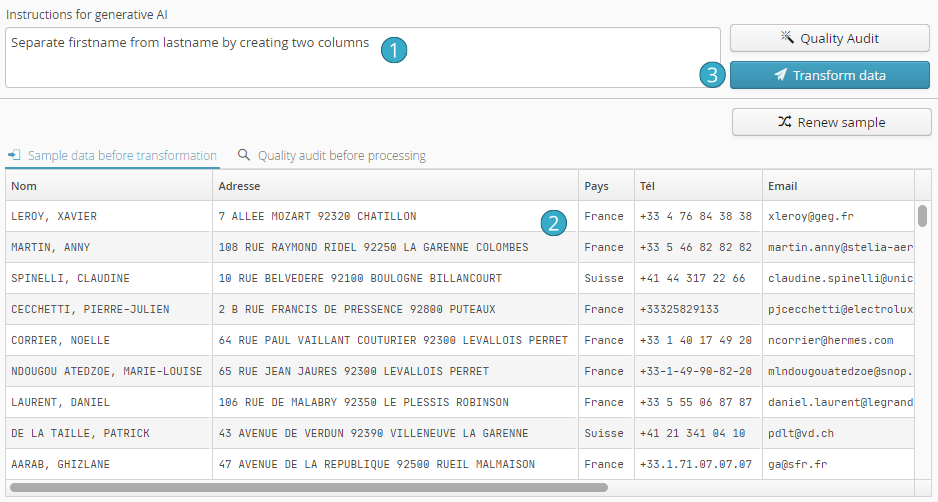
Type your instructions into the prompt box
The Data sample before transformation tab displays data (before transformation) in the bottom table (100 rows maximum)
Click the Transform data button: the generative AI will return a set of instructions to correct and/or transform each row. Tale of Data will validate these instructions, then apply them to the sample so the user can preview the results.
5.5.4. Results analysis
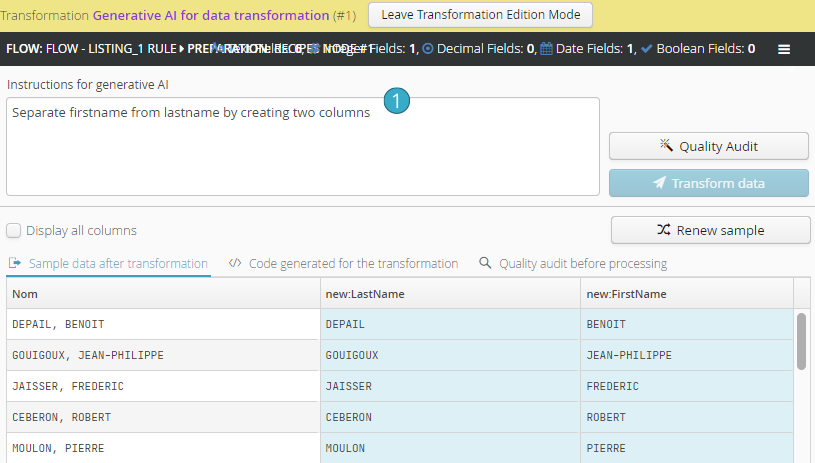
Once the transformation is applied to the sample, the transformed data is displayed in the Data sample after transformation tab
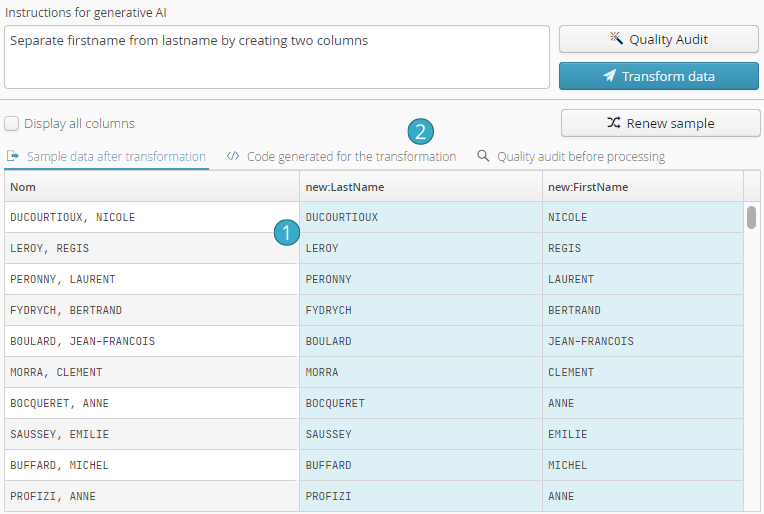
By default, only the columns involved in the transformation are displayed. If the transformation created new columns, they appear on a light blue background (clicking the Show all columns checkbox allows viewing all columns of the transformed dataset).
The Data sample after transformation tab allows the user to verify that the transformation result meets their expectations.
A more thorough, but more technical verification is possible: simply click on the Code generated for transformation tab to access the generated code (it is this code that will be invoked when running the flow).
The generated code is readable, concise, and easily verifiable by anyone familiar with scripts or macros:
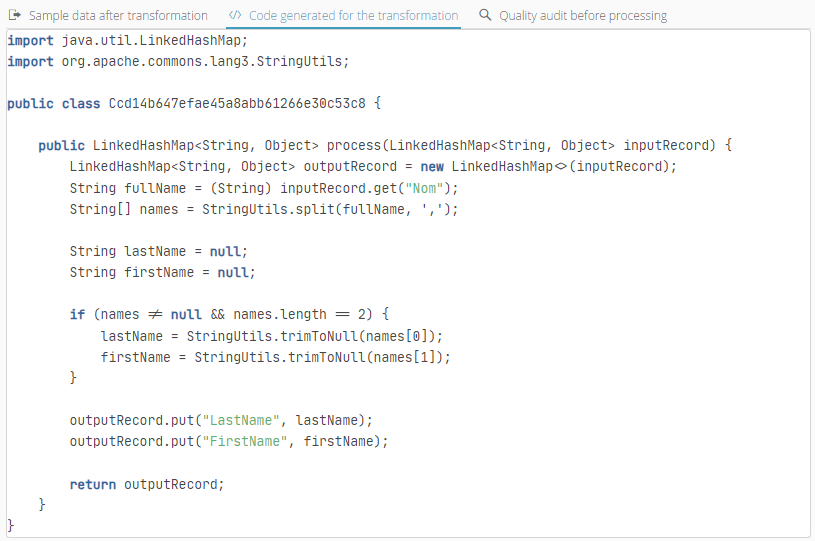
Click the red Apply button at the bottom left to effectively apply the preparation and integrate it into the flow:

5.5.5. Editing the transformation
Like most transformations in the preparation editor, the Generative AI transformation is easily editable:
Click the pencil icon associated with the transformation in the sliding pane of the preparation history:
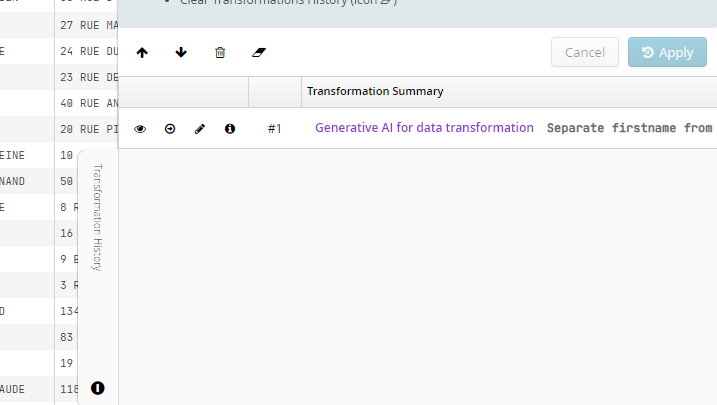
Simply modify your prompt  as desired and reapply the transformation:
Note
Practical example: Code generator via generative AI
Before Transformation:
ID |
Description |
Quantity |
|---|---|---|
1 |
Raw material - Steel |
50 |
2 |
Raw material - Wood |
20 |
Transformation Configuration:
Generative AI instructions:
Prefix descriptions with “Transformed: “
Increase quantity by 10%
After Transformation:
ID |
Description |
Quantity |
|---|---|---|
1 |
Transformed: Raw material - Steel |
55 |
2 |
Transformed: Raw material - Wood |
22 |